VR Application: Leap Motion
The Leap Motion controller is a hand-tracking device that uses a combination of cameras and infrared sensors to track the movement of hands and fingers with high accuracy and low latency.
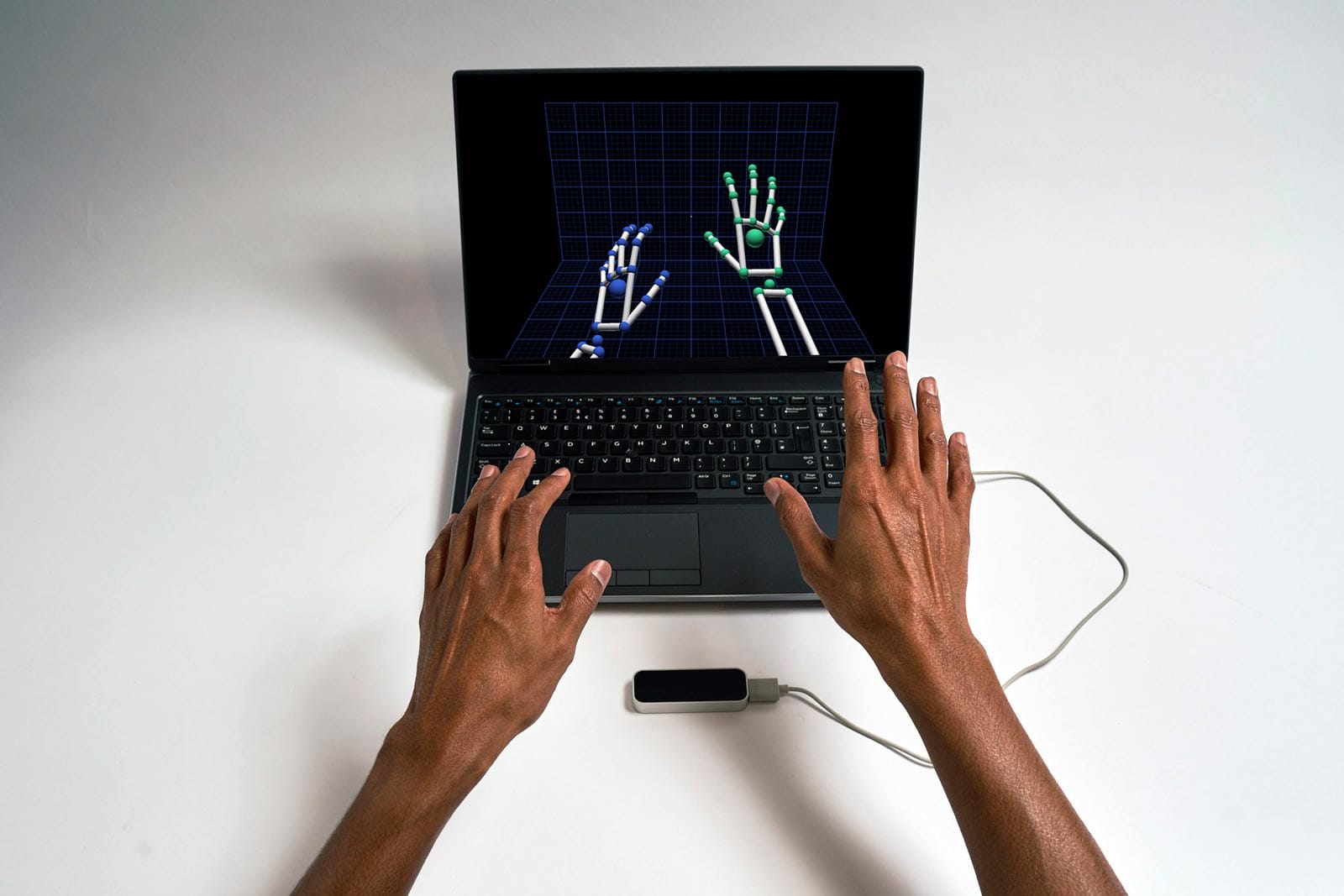
This guide explains how to set up Leap Motion hand tracking with Unity using the Leap Motion Unity Modules, Core Assets, and Interaction Engine.
Prerequisites
Ensure you have the following:
PC Requirements: Windows 10 or later, or macOS.
Hardware: Leap Motion Controller or Ultraleap device, ESP32-based dongle, and SimpleThimble thimbles.
Unity Installation: Unity 2020.3.28f1 or later (LTS versions recommended).
Software Tools: Unity Hub, Visual Studio (for script editing).
Downloading Leap Motion Gemini
We will need a specific version of Leap Motion called Gemini, as this developer kit integrates well with Unity packages.
To download Leap Motion Gemini 5.20.0, click here.
After installation, attach your Leap Motion to the PC and launch the Leap Motion visualizer to ensure it is working correctly. You should see an interface similar to this:
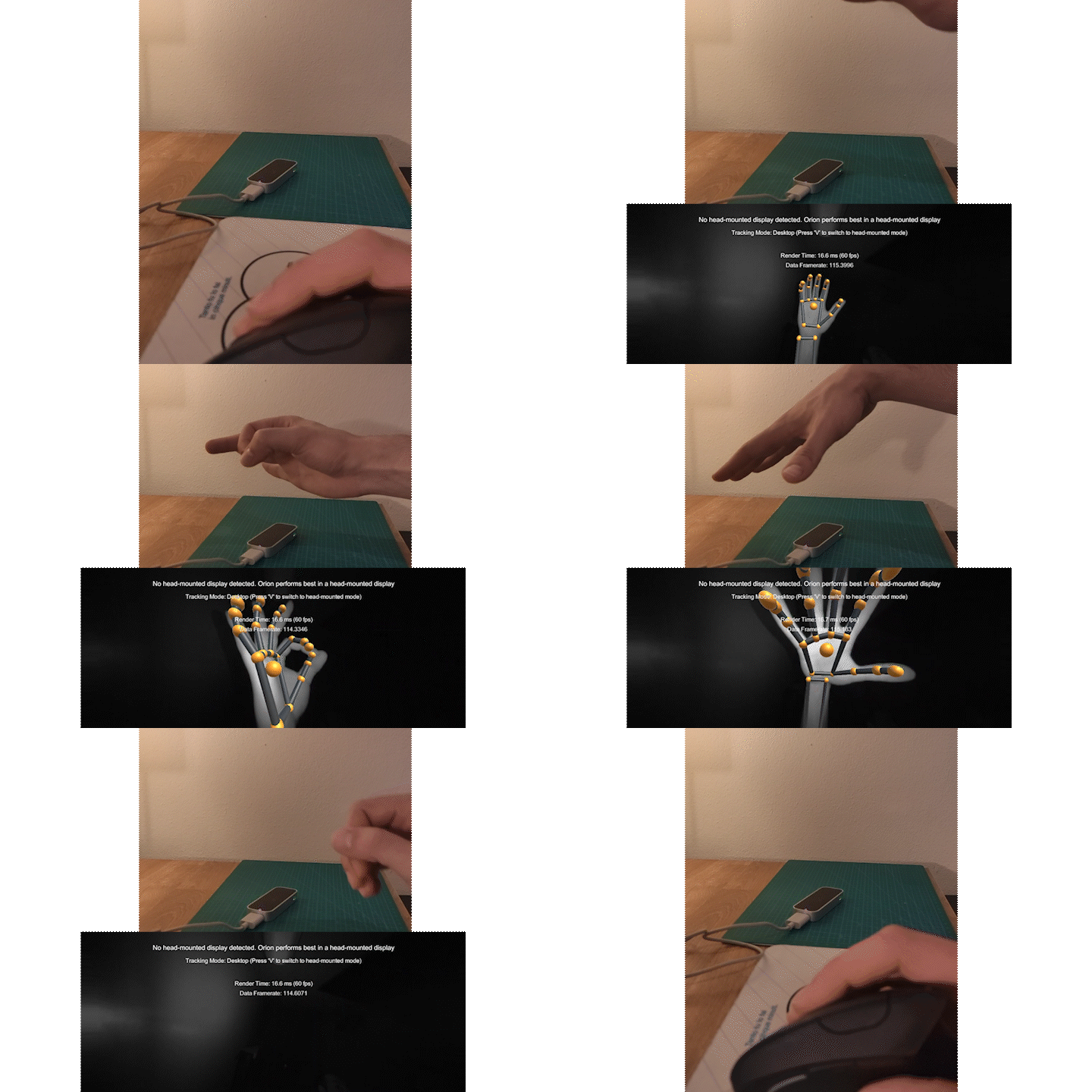
The following steps will guide you through setting up the SimpleThimble Unity project with Leap Motion hand tracking.
Step 1: Download and Open the SimpleThimble Unity Project
Download the SimpleThimble Project:
here.Extract the Folder: Extract the
Simplethimble_leapProjectfolder from the compressed file.Open the Project in Unity: - Open Unity Hub. - Add the extracted project folder as project from disk. - Select Unity 2020.3.28f1 as the version for the project.
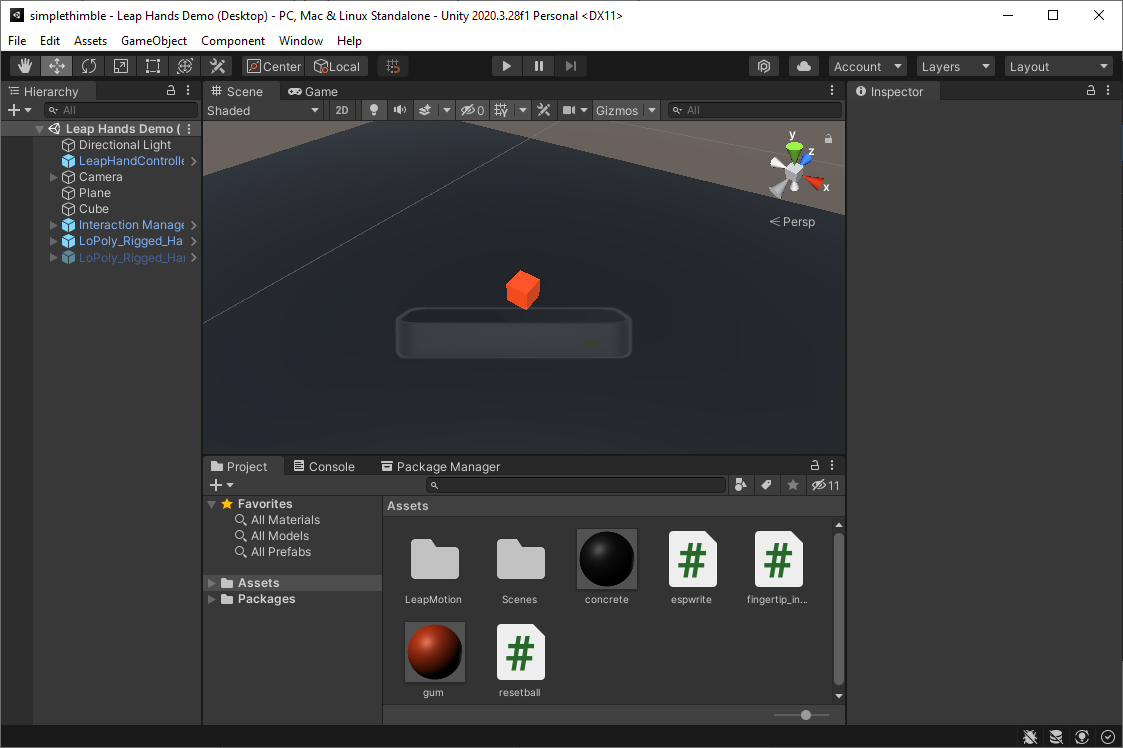
After opening the project, you should see a Unity IDE environment similar to this:
Step 2: Configure the ESP32 Dongle for SimpleThimble
Locate the C# script
espwrite.csin the Unity Project: - Path:Assets/espwrite.cs.Open the script in Visual Studio by double-clicking its icon.
Modify the COM port number at line 14 to match the port assigned to your ESP32 dongle. Example: Change
COM21to the correct COM port for your computer.
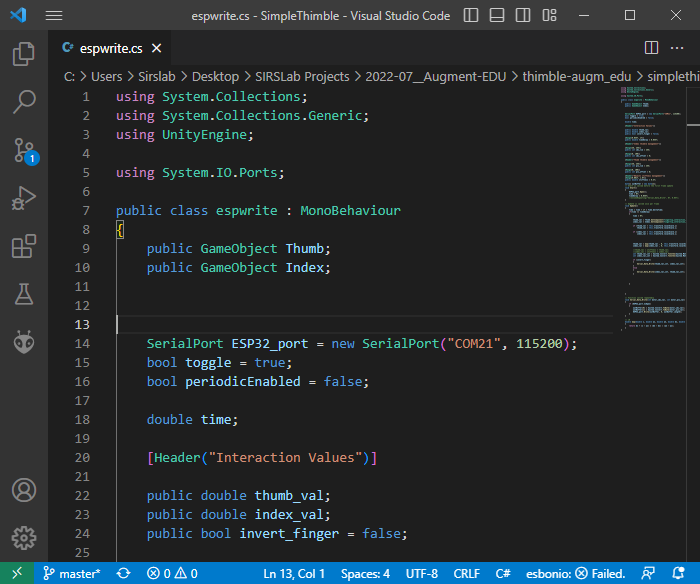
Save the changes and return to Unity.
Step 3: Test SimpleThimble with Leap Motion
Connect Devices: - Connect the Leap Motion Controller and ESP32 dongle to your PC. - Ensure the SimpleThimble thimbles are battery-powered.
Start the Project: - Open the project in Unity. - Click on Game view and select Maximize on Play. - Press the Play button in Unity.
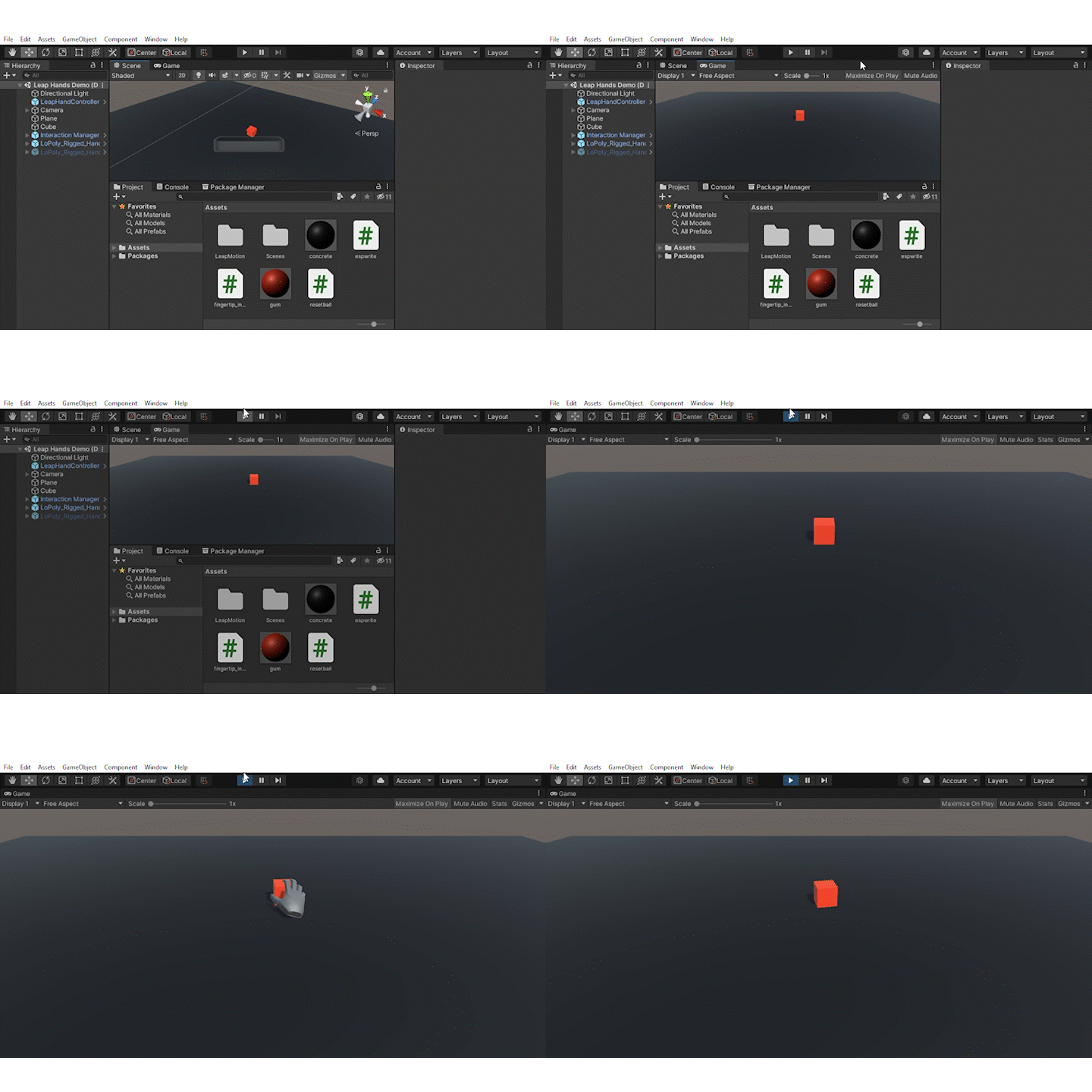
Interact with the Scene: - Move your hand over the Leap Motion Controller to see it in the Unity scene. - Touch the cube with the SimpleThimble thimbles to experience haptic feedback.

Reset the Cube: - If the cube falls out of the Leap Motion workspace, press “R” on your keyboard to reset it to its initial position.
Final Step: Grasp and Feel the Virtual Cube
Wear the SimpleThimble devices, grasp the red cube in the scene, and feel the cutaneous haptic feedback.
Troubleshooting
Verify the Leap Motion Controller and ESP32 dongle are properly connected.
Ensure you are using the correct Unity version and modules.
For Leap Motion issues, visit the Leap Motion Support Center.